ONESOURCE
Workpapers Help
Edit a Workpaper
To modify an existing workpaper:
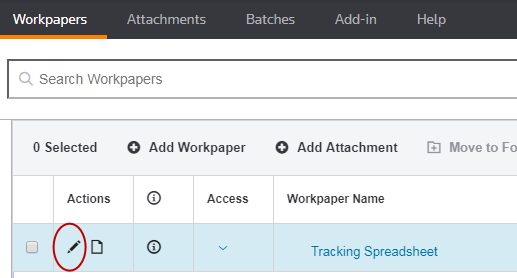
- In the Workpapers grid, select the pencil icon in the Actions column for the workpaper you want to edit.
You can only edit workpapers that are not checked out or designated as read-only.
- Complete the fields as applicable:
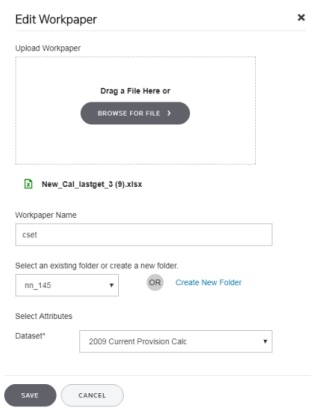
- In the Upload Workpaper field, upload a different workpaper by browsing or dragging in a new file.
- In the Workpaper Name field, type a different name for the workpaper.
- In the existing folder list, select an existing folder or select the Create New Folder link.
- If you see Select Attributes, select a value in Dataset.
Datasets marked with an asterisk are required.
- Click Save.
-
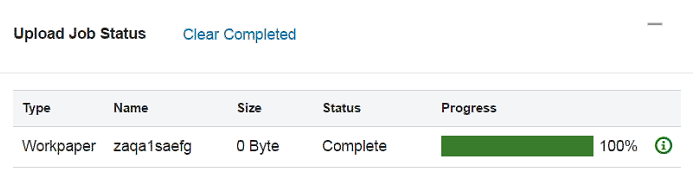
Review the upload details in the Upload Job Status pop-up. Successful jobs display a green progress bar, and failed jobs display a red progress bar.